An Effective Prompt System with Microsoft Copilot
By now, everyone knows that AI output varies widely based on what you feed into it.
I see this with teams I work with almost daily.
Sometimes people produce an incredible analysis or output that nails exactly what's needed. It's concise and insightful. Then someone else attempts the same task and the result is generic, surface-level, and obviously 'sounds like AI'. Same tool, same data, completely different results.
At times, the issue is the model or tool. In my experience, Microsoft Copilot’s RAG (Retrieval-augmented generation) system only reads a limited set of data, say the first few paragraphs or pages, and not the entire thing. In this case, I get better results when I attach an entire document to a prompt vs. linking to something.
And sometimes…the problem is the prompt itself, the words we use, and the task we give GenAI.
Prompting is a skill, and like any skill, some people are better at it than others. Some team members will iterate and refine their prompts until they get what they need. Others copy and paste the first thing they find, or enter just a few basic words (like a search query) and call it done. Most people fall somewhere in between, which means a team's AI output is all over the place.
This matters more as AI becomes part of our daily workflows. You can't onboard new people effectively if everyone's winging it. You can't improve your results over time if you're not tracking what works. And you definitely can't say "use prompt 3 for that type of RFP" if prompt 3 doesn't exist anywhere except in someone's head.
The solution isn't only saving your prompts somewhere. It's building a system that makes good prompting repeatable, shareable, and evolvable. It's less of a bookmark folder and more like a prompt system that gets better the more your team uses it.
Do you need a prompt system?
One of the first solutions teams start with to get more consistent results from AI is to build a prompt library of some sort. Maybe it's simple a Word document saved to SharePoint, or a few pages in OneNote, but it's the starting point for saving those prompt 'gems.'
But, do all teams need a prompt library?
I think probably not, unless you're doing one of these things:
You're working across multiple clients or projects where reusing prompts saves real time. You're not just asking Copilot to summarize emails occasionally. You're running the same types of analyses, creating the same kinds of reports, or responding to similar requests over and over.
You're tuning prompts for specific results. Maybe you need marketing copy in a particular voice, data analysis formatted a certain way, or RFP responses that hit specific requirements. You've learned what works and you don't want to reinvent it every time.
You're teaching others how to use AI tools. If you're onboarding junior staff or trying to level up your team's AI skills, having good examples they can reference and modify is way more valuable than sending them a "prompting tips" article.
You're building systems where prompts are part of the backend. If you're working in Copilot Studio, Power Automate, or any workflow where prompts are embedded in automation, you need them documented and versioned like any other code.
If you're just chatting with Copilot to brainstorm ideas, draft the occasional email, or get help with something now and then, a prompt library is overkill. You don't need a system for that.
What I've learned through working with teams on AI prompting is that: Better prompts don't fix broken systems.
“Better prompts don’t fix broken systems.”
What does a better system mean?
You can write the most perfect, beautifully crafted prompt in the world, but if your data is a mess, your process is entirely manual, or your expectations are completely off, it won't matter. The prompt will fail because everything around it is set up to fail.
Instead of obsessing over prompt perfection, focus on building better workflows first, which means automating the things you repeat including:
Organized libraries with proper metadata and views in SharePoint so people can just add files easily (without too much thinking!)
Layer in SharePoint Autofill which uses AI to scan files and extract metadata. This metadata can trigger the next step in a process, such as a workflow or simple notification.
Build a Copilot Studio agent or Power Automate flow that chains tools together.
Create a process that makes sense and then figure out where AI fits into it. The prompts will be easier to write when they're part of a functional system.
Three Microsoft-based approaches
Ok, so you've decided that a prompt system is the path that benefits your team.
I've listed three options below, but keep in mind that they combine elements of a documentation system and workflow. You might be opening them up, finding the prompt, copying it or using it, and tweaking the variables. That's fine for occasional reference or when you're training someone, but if you're doing it multiple times a day, you should be automating instead.
So pick based on what kind of documentation and workflow you need.
Option A: Lightweight with OneNote
OneNote is fast to set up and everyone already knows how to use it. Create a notebook, organize prompts by section, and you're done in 10 minutes. It's searchable and easy to share. In each prompt entry, add sections such as:
Title & Version (e.g., "RFP Proposal Summarizer v2.1")
When to Use (1-2 sentences)
The Prompt (with [VARIABLES] marked)
Example Output (optional but helpful)
Notes/Changelog (what you tried, what works)
Microsoft OneNote page with AI prompt template
When this makes sense: You're building a reference library for onboarding new team members or documenting "here's how we handle RFPs" as institutional knowledge. You need examples people can learn from and adapt, not something they'll use every single day.
Option B: Native with Copilot Studio
Copilot Studio has a built-in prompt library, but it's limited. No real versioning, and shared prompts can't be edited by others. So if you need collaborative prompt development, this isn't going to work well, although it's an area to keep an eye on as Microsoft evolves this feature.
Source: Microsoft
When this makes sense: You're invested in Copilot and custom agents, and want to keep your prompts in the same place.
Option C: Prompt Automation (where we want to be)
This is the real answer for anything you do regularly. Instead of storing prompts for people to copy and paste, embed them into systems that run automatically.
Build a Power Automate flow that triggers when a new RFP hits your SharePoint folder, runs your prompt against it, and outputs a draft response strategy. Create a custom Copilot agent that has your best prompts baked in and knows when to use which one. If you're a dev team, use reusable prompt files in Visual Studio where people can reference prompts directly in their code. The Microsoft PnP community is actively building this out.
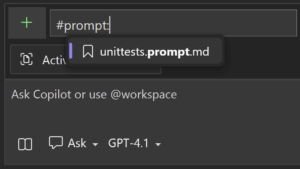
Using a prompt file in Visual Studio. Source: Microsoft
The pattern to watch for: If you find yourself going to your prompt library multiple times a day, that's a sign you should be building automation, not refining your filing system. Options A and B are for reference and training. Option C is for productivity.
Most teams should have a small library (5-10 prompts) for onboarding and special cases, and then focus their energy on automating the repetitive work. I recommend a model where starter prompts are for teaching, and you build automation for doing.
“Use prompts for teaching, and automation for doing.”
Making it work: The system around your library
One mistake with prompt libraries is treating them like a dumping ground. Every prompt someone uses once ends up documented, and six months later you have 45 prompts and nobody knows which ones work best. So avoid this!
I like to focus on systems and here are the components for a good prompting system that is less likely to be a dumping ground:
1. Storage & Organization
Decide here prompts live and how you find them:
Choose your tool: OneNote, SharePoint List, or Copilot Studio, embedded in agents
Organize by use case, department, or frequency of use
Use consistent naming: 'RFP Response - Technical' not 'Bob's prompt v3'
Make it searchable with tags or categories
2. Context & Guidance
Be clear on when to use which prompt:
Clear use case: 'Use this for Microsoft Purview Records Management RFPs'
Example input/output so people know what to expect
Variables marked clearly: [CLIENT_NAME], [PROJECT_SCOPE]
Known limitations: 'Doesn't work well for healthcare clients'
3. Feedback Loop
How prompts improve over time:
Easy way for team to report 'this didn't work' or 'this was great'
Regular review cadence: quarterly prompt audit
Graduation path: when does a prompt become automation?
Pruning process: archive what's not being used
4. Versioning & Evolution
Track what works and what doesn't:
Note what you tried and what failed (save yourself time later)
Track changes: why did we update this prompt?
Keep a simple changelog: 'v2.0 - Added customer context requirement'
Archive old versions, don't delete them (you might need to roll back)
“The key insight: Without all four components, you just have a collection of prompts. With all four, you have a system that helps your team get better results over time.”
Conclusion: Build, test and evolve
The point isn't to build the perfect prompt library. It's to recognize when you need one and what problem it's solving. Most teams don't need a comprehensive system - they need a handful of documented prompts for onboarding and reference, plus the discipline to automate anything they use regularly.
If you're in the Microsoft ecosystem, you already have the tools. Pick OneNote if you want simple and fast. Layer in Power Automate and SharePoint for governance and workflow. Use Copilot Studio if you're already deep in it for other reasons. Set up the four system components for reviews, keep your library lean, and remember that the best prompt is the one you don't have to manually run anymore.